 BuildWell
Free Invoice Generator
Fill in the job, see the invoice as you type, and download a PDF to send. Free, no account.
Everything stays in this browser. Nothing you type is sent to BuildWell.
How to use the free invoice generator
The free invoice generator makes a numbered, itemized invoice in your browser. Add your business and the client, set the invoice number and due date, list the work, and write how the client can pay. The preview updates as you type, and the PDF is ready to send in one click. Below the tool: a worked example, what every invoice needs, the mistakes that slow down payment, and how an invoice fits with estimates and receipts.
- 1
Add your business
Enter your business name, contact details and license number, and upload your logo.
- 2
Add who you’re billing
Enter the client’s name and address. For a business client, ask whether they need a purchase order number on it.
- 3
Set the number and due date
Give every invoice its own number, and set a due date the client can’t miss.
- 4
List what you did
Add a line for each part of the work, with a quantity and a price, plus tax and any discount.
- 5
Say how to pay
List how the client can pay, such as Zelle, check or card, then download the PDF and send it.
Who uses an invoice
Every business that does the work before it’s paid sends invoices. Here is what the trades that send the most of them put on the page.
Plumbers
Service calls are often billed the same day. List the service charge, the labor and each part, so the client sees what the repair cost and why.
Plumbing software →Electricians
Bill devices, circuits and permit fees on their own lines. For a business client, put their purchase order number in the job name so their office can match it.
Electrical software →HVAC technicians
Maintenance and repairs repeat at the same address. Clear descriptions and numbers in order make it easy to look up what you did there last season.
HVAC software →Handymen
Many small tasks on one visit. A line per task, with the time or a flat price, reads better than one line that says “misc. repairs.”
Handyman software →Cleaning businesses
Recurring work needs recurring invoices. Put the service period in the job name, like “Weekly cleaning, Sept 1–28,” so each one is easy to tell apart.
Cleaning software →Landscapers
Installs mix labor, plants and materials. Separate them, so a client can see what the plants they chose cost and what the planting cost.
Landscaping software →How to make an invoice: an example
Here is a filled-in invoice for a water heater replacement, made with the generator above. The business, client and prices are invented for the example.
- A real due dateNot just “net 14”: the date itself, so there’s no question about when payment is late.
- Labor as hours times a rateFour hours at the hourly rate is easier to accept than one large labor number, and it matches how the job went.
- Fees on their own linesThe permit and inspection are separate from the work, so the client sees what went to the permit office.
- No tax line in this exampleWhether labor and materials are taxed depends on your state. Set the tax rate in the generator if yours applies.
- How to pay, spelled outEvery way the client can pay is printed on the invoice, with who to make the check out to.
Before you send it, check it has
- The word “Invoice” and a unique invoice number
- Your business name, contact details and license number
- The client’s name and billing address
- The invoice date and the due date
- Each line of work with quantity, price and amount
- Subtotal, discount, tax, total and any amount already paid
- How to pay: Zelle, Venmo, check, card or bank transfer details
- Late payment terms, if you charge them
What goes into a strong invoice
The parts every invoice needs, and why each one matters to the client reading it.
“Invoice” and a unique number
The title tells the client this is a request for payment, not another estimate. A number in sequence lets both of you, and your bookkeeper, find it later.
Your details and license number
Name, address, phone, email and license. Business clients may need your details to pay you, and homeowners keep invoices for their records.
Who you’re billing, and where the job was
The person or company paying, with their billing address. If the job was somewhere else, put the job address or name in the job field.
The invoice date and the due date
The date you issued it and the date payment is due. A due date in plain sight is the simplest way to get paid on time.
The work, matching what was agreed
The same lines as the estimate the client accepted, plus any changes they approved. Matching lines means fewer questions before they pay.
Totals, payments received and the balance
Subtotal, discount, tax and total. If the client paid a deposit, show it as a credit line so the amount due is clear.
How to pay
Every method you accept, with the details the client needs: who checks are payable to, and how to pay by bank transfer or card.
Terms
When payment is due, and any late fee, but only a fee you agreed with the client before the work started and that your state allows.
Common invoice mistakes
And how to avoid them, so the document does its job the first time.
No due date
“Upon receipt” on its own gets read as “whenever.” Print an actual date.
Reusing invoice numbers
Two invoices with the same number confuse your records and the client’s. Never reuse one, even for a cancelled invoice.
Lines that don’t match the estimate
If the invoice reads differently from what the client accepted, expect a phone call before a payment. Bill the same lines, plus approved changes.
Forgetting the deposit
Billing the full amount after taking a deposit looks like double billing. Add a line like “Less deposit received” with a negative amount.
No way to pay
An invoice that doesn’t say how to pay waits until the client calls to ask. List every method you accept.
Invoicing late
The longer you wait to send it, the longer you wait to be paid. Send it the day the work is done.
Invoice templates you can create
The generator has 6 layouts and 12 colors. Here is the example above in three of them; pick yours in “Look” at the bottom of the form.
Features of the free invoice generator
Live preview
The document redraws as you type, in the same layout BuildWell itself sends.
Your logo and colors
Upload a PNG, JPG, SVG or WebP up to 2 MB, and pick from 12 colors.
6 templates
Classic, Headline, Banner, Statement, Minimal and Letterhead.
Tax and discounts
Set a discount and a tax rate. The discount comes off before tax, and the totals are exact to the cent.
Private by default
What you type stays in this browser and is remembered on this device. Nothing is sent to BuildWell.
A PDF with no account
Download the PDF from your browser’s print dialog and send it however you like. No sign-up.
Tracking and follow-up in BuildWell
A PDF invoice can sit unopened in an inbox. Invoices sent from BuildWell come with a link: clients pay by card or bank transfer once you’ve connected Stripe, or see the other payment details you list, and you’re notified when they pay. Each payment is recorded against its invoice, so you always see what’s paid and what’s left. How the client portal works.
- Opened, and how oftenSee when the client opens your estimate and how many times.
- Accepted or declinedGet notified when the client accepts and signs on their phone, or declines.
- PaidGet notified when the client pays an invoice, and see what’s still owed.
- Sent from your phoneText or email the link in your own words. Clients need no app or account.
- Estimate E-1042 sent by textMon 9:14 AM
- Opened by the client · viewed 3 timesMon 7:52 PM
- Accepted and signedTue 8:03 AM
- Deposit invoice sentTue 8:10 AM
- Deposit paid by bank transferWed 11:26 AM
Skip the typing. Let it price the job.
Describe the job by voice or photos. BuildWell lists the work, prices it for your area, gets it signed on the client’s phone, and turns it into the invoice.
- AI estimates priced for your area
- Estimates, invoices, clients and projects
- Clients sign on any phone
- Card and bank payments, no extra BuildWell fee
- iPhone, Android and the web
- AI estimates priced for your area
- Estimates, invoices, clients and projects
- Clients sign on any phone
- Card and bank payments, no extra BuildWell fee
- iPhone, Android and the web
Both plans include every feature and start with a 3-day free trial. Add a card to start; you’re not charged until the trial ends. Cancel anytime.
Invoice FAQ
01Is it really free, with no sign-up?
02What should my invoice numbers look like?
03What due date should I use?
04How do I add payment instructions?
05Can clients pay this invoice online?
06Should I charge a late fee?
07Can I add my logo?
08How do I save it as a PDF?
09Will my details be here next time?
10Can I turn an estimate into an invoice?
Free resources
Templates, calculators and definitions. No sign-up.
Guides for this document
Try BuildWell today
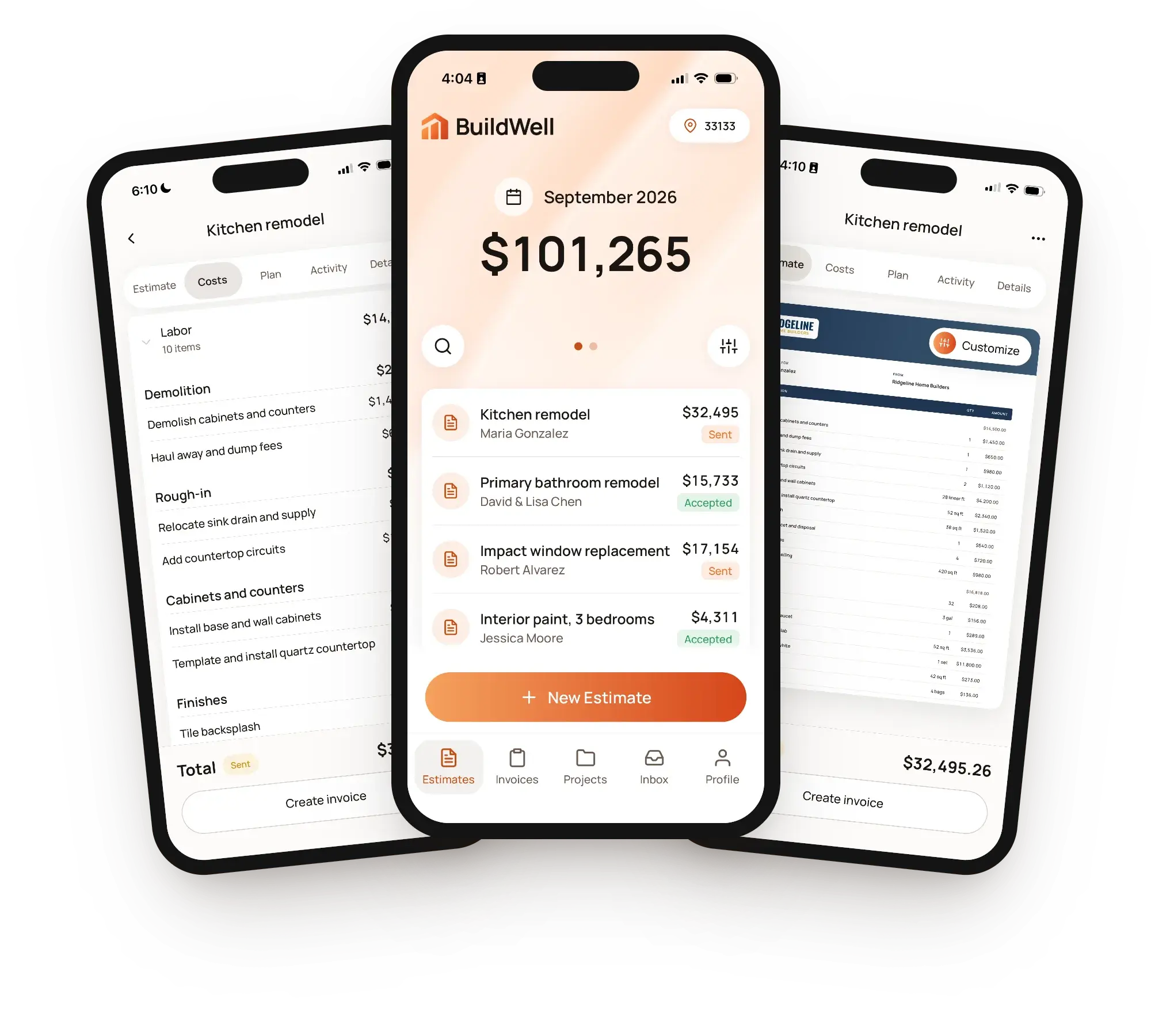
Estimates, invoices, e-signatures and payments in one place, on your phone and on the web.