 BuildWell
Job photos and renders that help clients picture the result
Keep photos with the job, not your camera roll. Show clients a render of the finished room before you start.
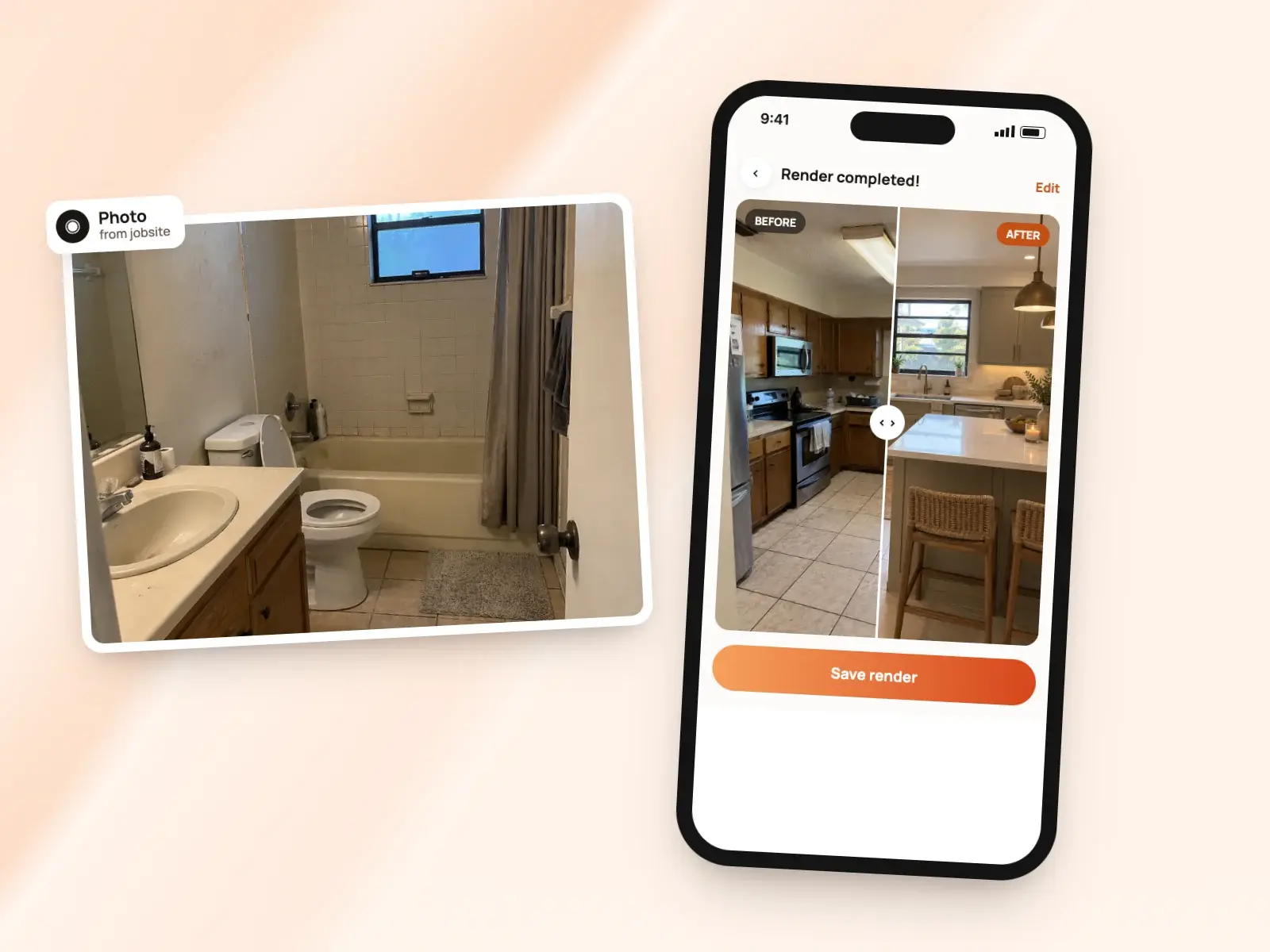
Job photos and renders, in short
- Photos help the AI plan the estimate
- Up to 10 reference photos kept with each estimate
- Up to 10 photos printed with an invoice
- AI renders of the finished room from a photo
- Before-and-after pages printed after the document
- Every photo and render filed under the job’s project
Photos that start the estimate
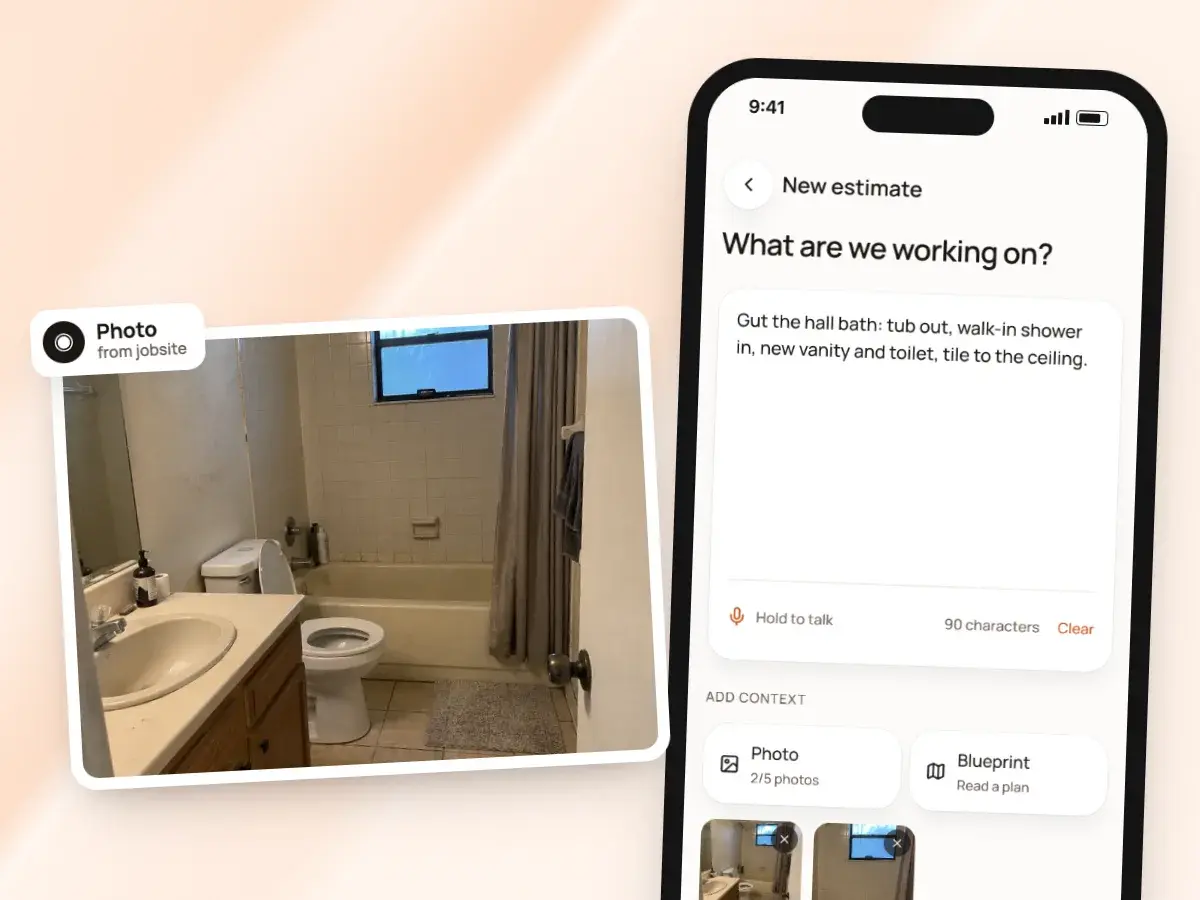
When you start an estimate, add up to five photos along with your description of the job. The AI looks at them while it plans the work, so the tile you want torn out or the old vanity in the corner is part of the picture from the start.
Have a floor plan or a quick sketch with measurements? Take a photo of it.
- No need to remember to type what the photos already show
- BuildWell reads the room dimensions from the drawing
- It uses them to work out quantities
- No copying numbers off a napkin into the app by hand
- You still check every quantity before anything is priced
Reference photos that stay with the estimate
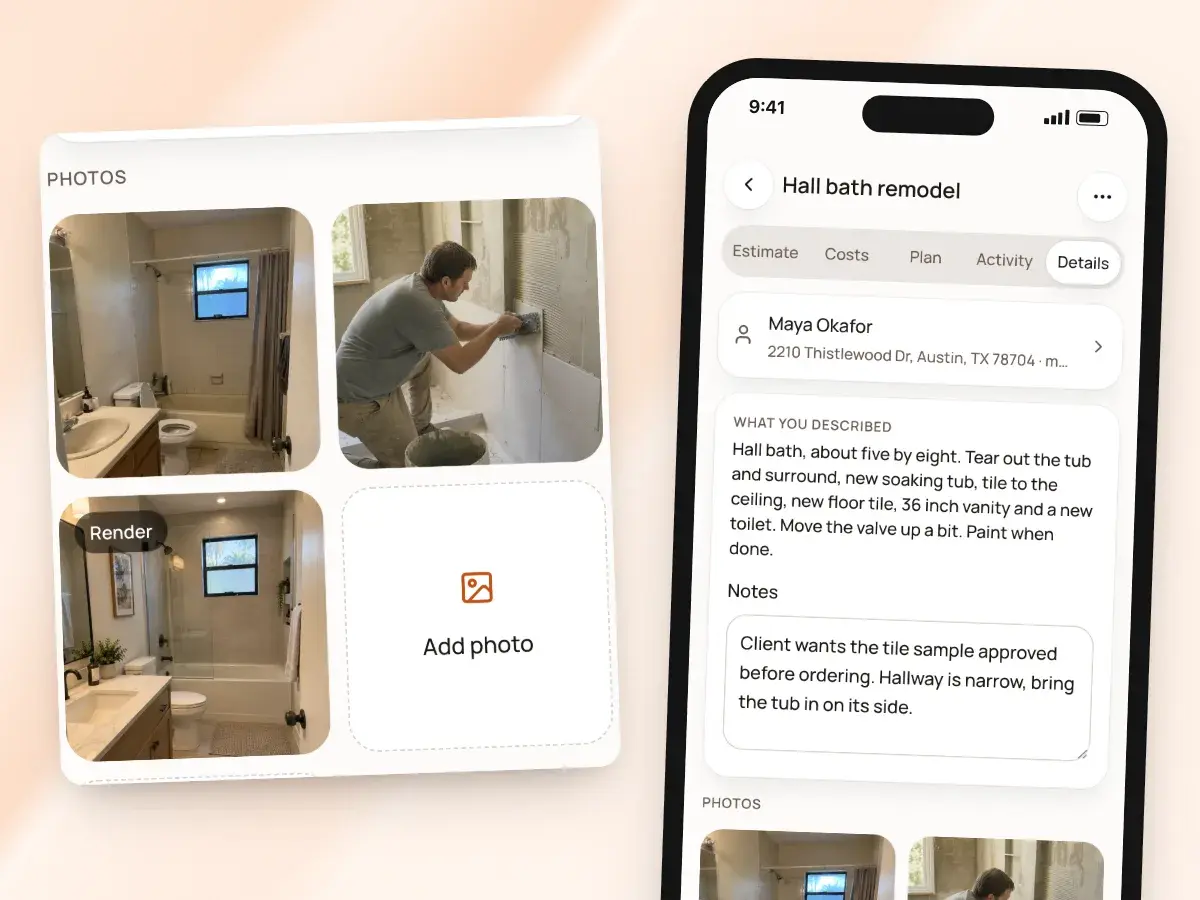
Keep up to 10 reference photos on each estimate. They’re there when you come back to the job, so you’re not digging through your camera roll for the shot you took on the walkthrough.
These photos are for you and the AI. They don’t print on the estimate the client sees.
- Shoot the water stain on the ceiling, the panel label, the crack in the slab
- Use them to revise the price, order materials or plan the work with your crew
- Keep the unflattering shots of a client’s basement without worrying where they end up
Photos printed with the invoice
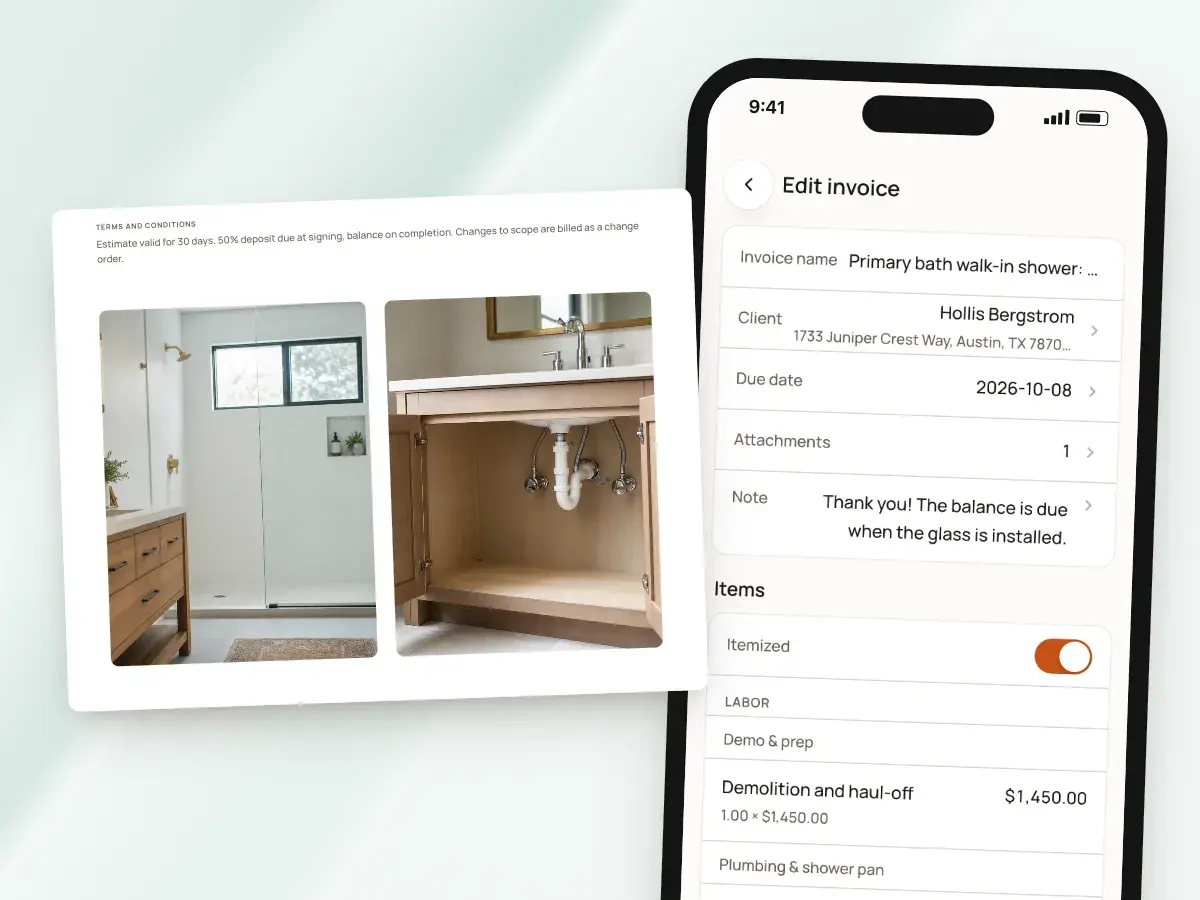
Attach up to 10 photos to an invoice to show the work you’re billing for. They print two across on their own pages after the invoice, so the client sees what they’re paying for right alongside the total.
Photos of finished work also answer questions before they’re asked. A client who can see the new water heater installed and the old one hauled away has one less reason to call before paying.
- Show the finished deck and the new electrical panel
- Show the patched wall before paint and the cleaned-up site
- The invoice keeps a record of the finished work if questions come up later
Show the finished room before you start
Take a photo of the room as it is today and describe the change: “white shaker vanity, large gray tile, glass shower door.” BuildWell asks a few quick questions to pin down what you mean, then makes a render of the room with the work done.
It’s the fastest way to get a client and you picturing the same bathroom. You show them their own room, from the same angle, finished the way you plan to build it.
- No describing a layout in words
- No flipping through someone else’s project photos
- The AI asks three to five questions before it draws
- The first version is closer to what you described
- You spend less time redoing it
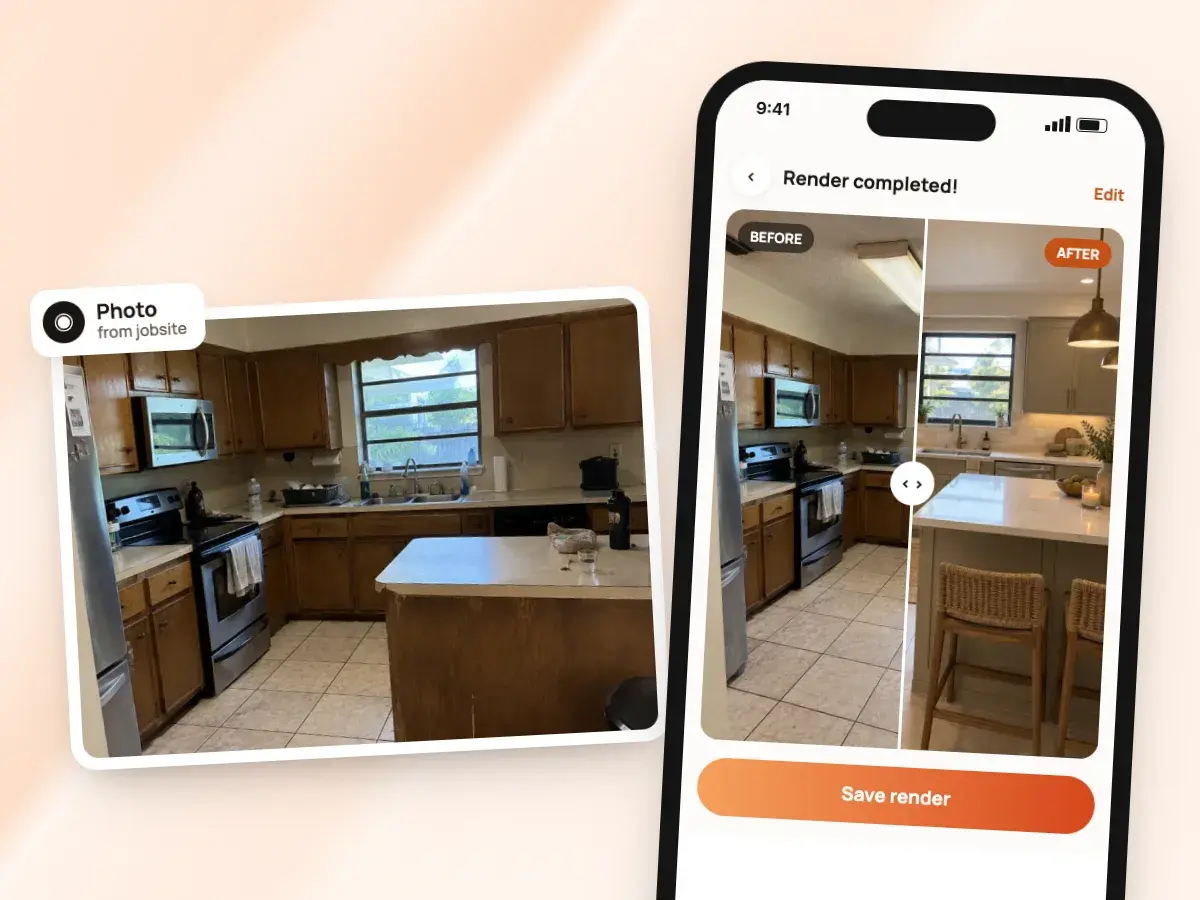
Refine it until it looks right
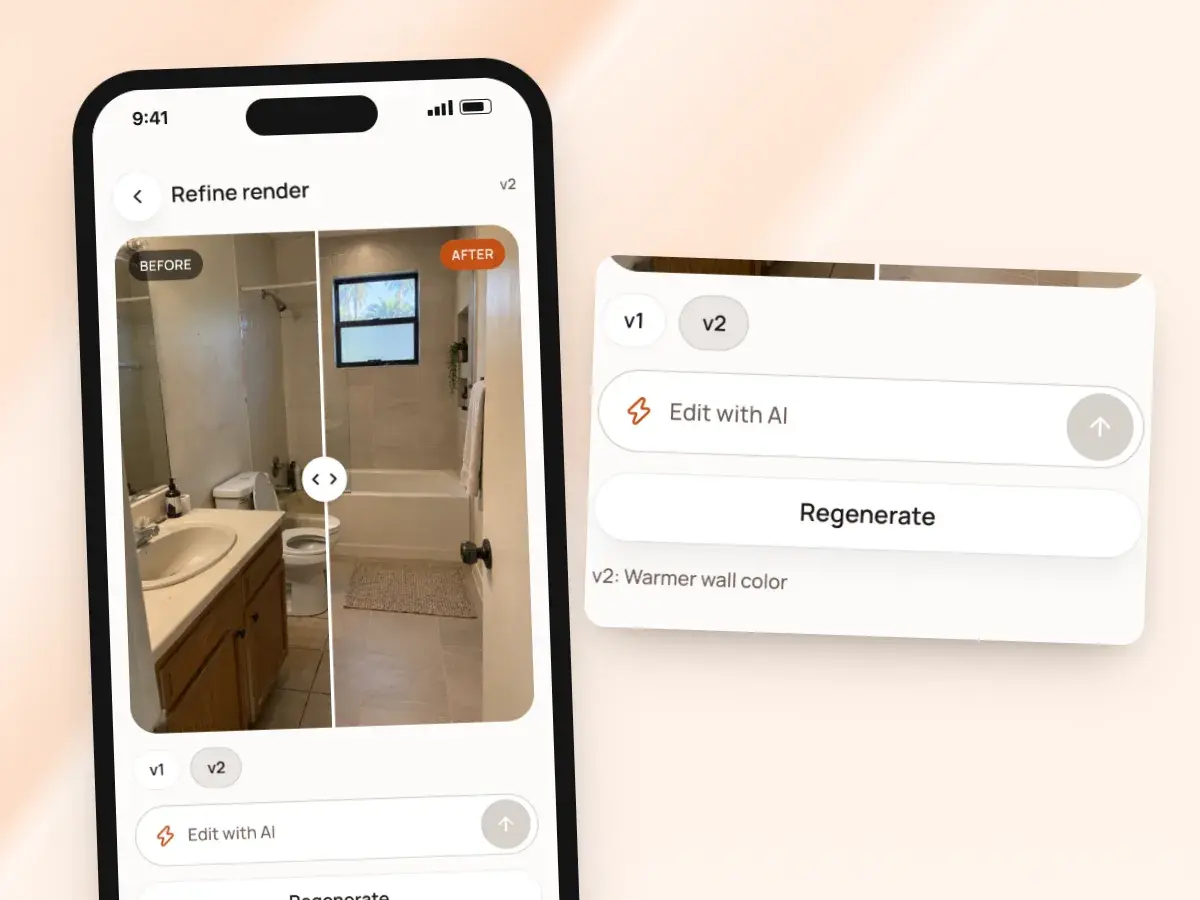
If the tile reads too dark or the client wants to see a different vanity, refine the render with a sentence. Each change makes a new version.
When a render is right, attach it to the estimate, the invoice or the project. The version you attach is the one that prints with the job, so you and the client are always looking at the same picture.
- Try a bolder idea without losing the one the client already liked
- Go back to an earlier version if they change their mind after sleeping on it
- Renders are made in the BuildWell app on iPhone or Android
- Make them right where you took the before photo
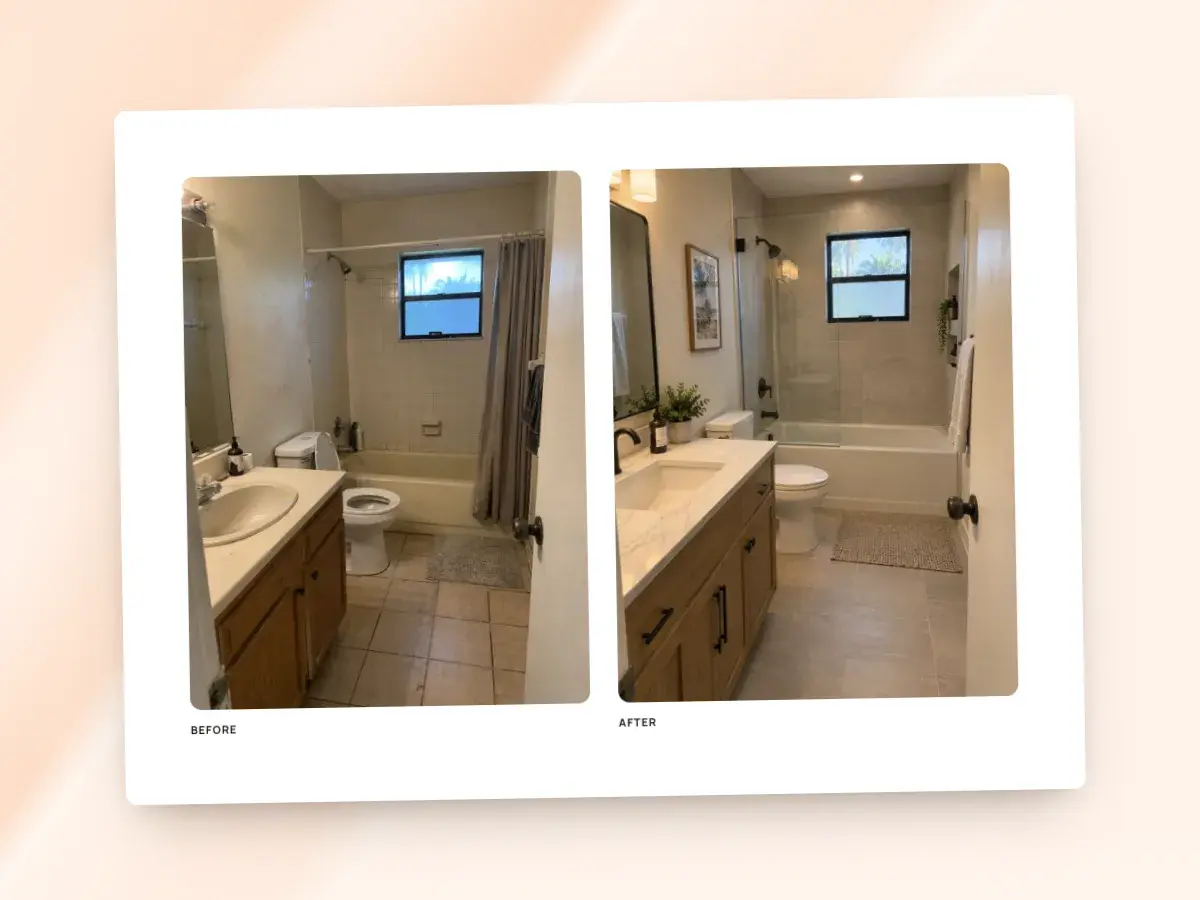
Before and after, printed with the job
An attached render prints as a Before/After page after the estimate or invoice: the original photo next to the finished room. The client gets the price and the picture together, in the same document, with your logo on it.
Estimates with an attached render print it after the estimate. The look the client agreed to is part of the paper trail.
- No separate image file to text over
- No chance of it getting lost in a thread
- On invoices, you choose whether attached renders print
- A final bill can stay to the point
- A deposit invoice for the same job can show the plan again
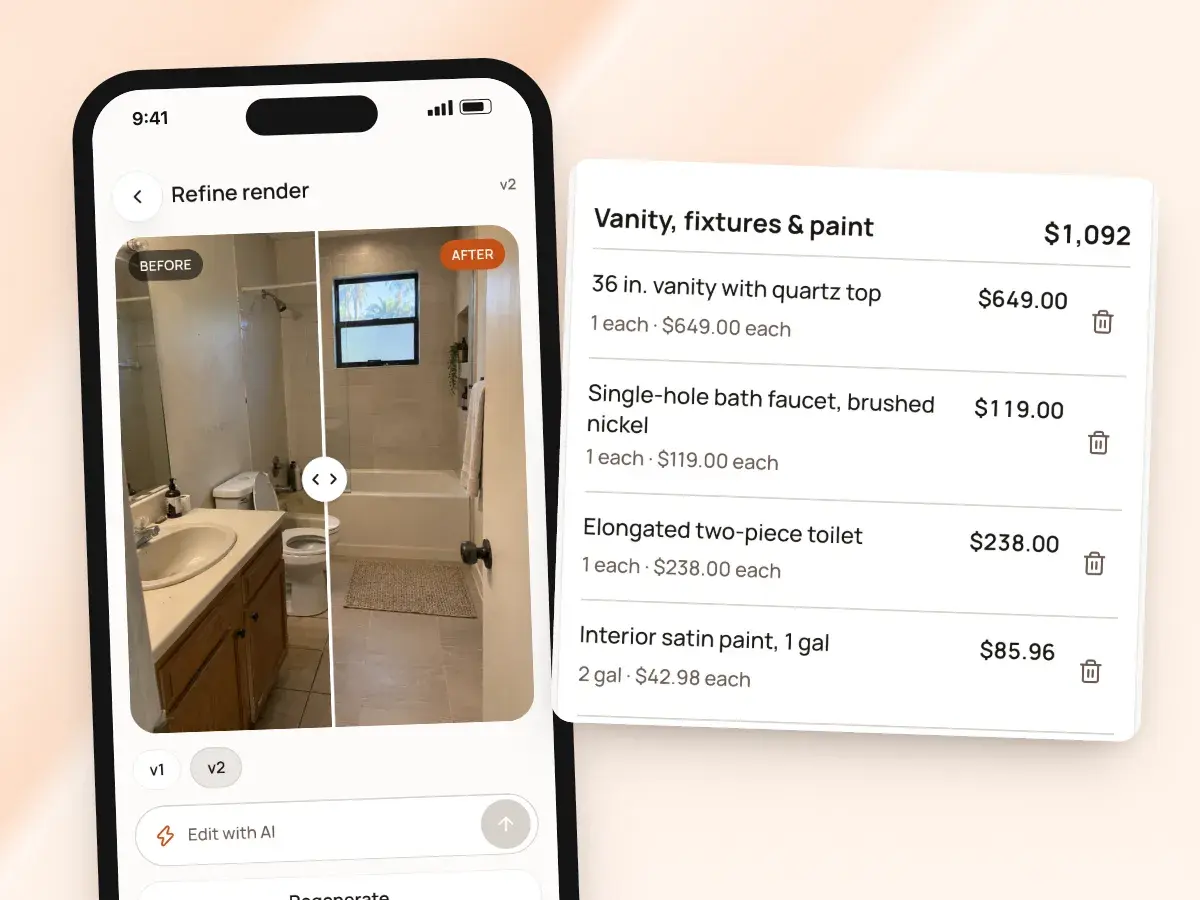
Sell the look, then lock in the details
Use renders to agree on the look, then pin down the real selections on the estimate. The render sells the idea; the line items say what you’re actually building.
Say what a render is when you share it, and it does its job: getting everyone excited about the same finished room.
- Pin down the vanity model, the tile and the fixture finish
- A render is an AI illustration of the idea, not a design or shop drawing
- Its details may differ from the products you install
Projects keep it together
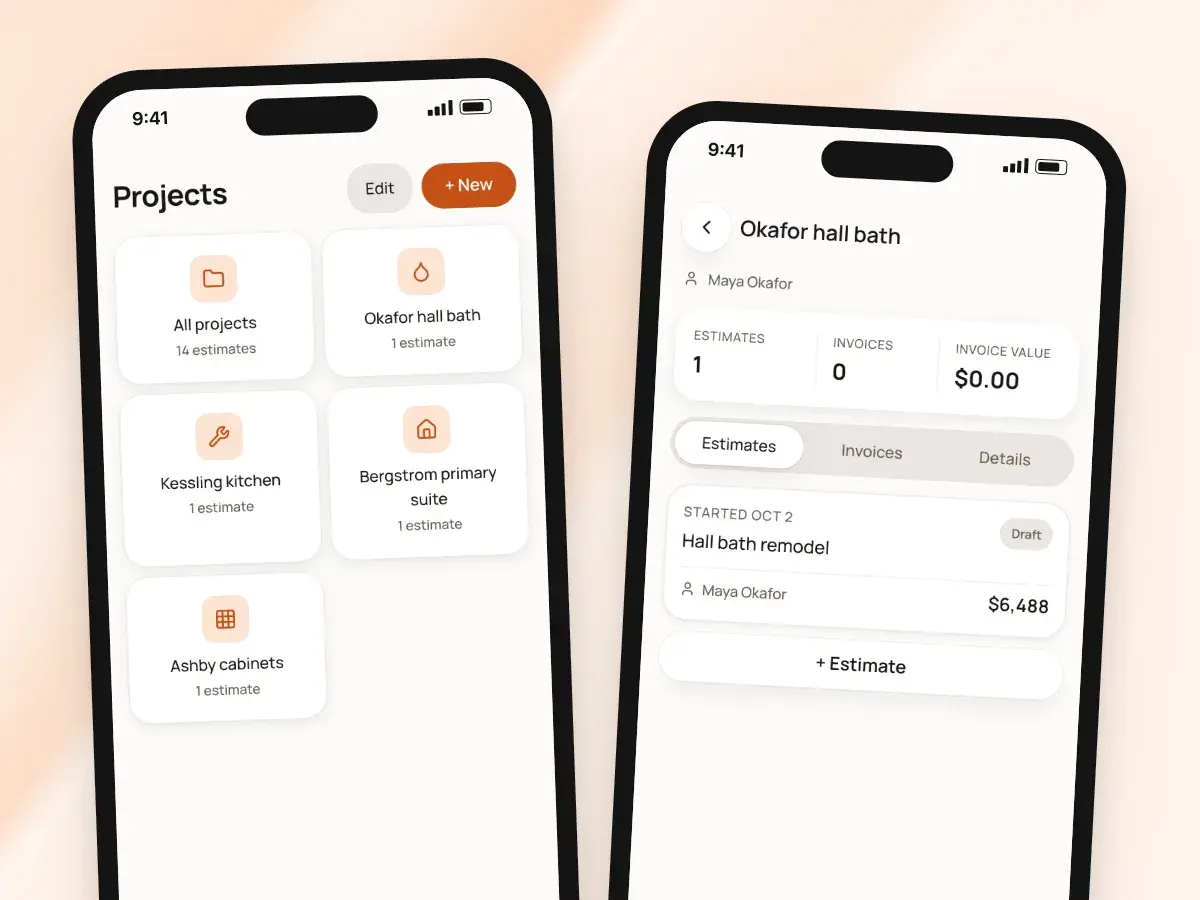
A project is a folder for one job, so nothing is spread across your camera roll, your texts and your email. Start one before there’s an estimate if you like, and keep the first walkthrough photos there.
Months later, when the client calls about a warranty question, open the project. The before photos, the render they agreed to and the signed estimate are all there together.
- The job’s estimates and invoices, with their balances
- Its renders and job photos
- Private notes and the client
- No remembering which phone you used or which week you sent the price
From a before photo to the finished room
- 1
Take the before photo
Stand where the client will stand and photograph the room as it is.
- 2
Describe the change
Say or type what you plan to build, then answer a few questions.
- 3
Refine the render
Adjust it with a sentence. Compare versions or go back to an earlier one.
- 4
Attach it to the job
Add it to the estimate, invoice or project. It prints as a Before/After page.
By hand vs with BuildWell
Handling photos and selling the look of a remodel, the old way and with BuildWell.
| The job | By hand | With BuildWell |
|---|---|---|
| Keeping job photos | Mixed into your camera roll with everything else. | Kept with the estimate, the invoice or the project. |
| Getting measurements in | Copy numbers off a sketch into a spreadsheet. | Photograph the floor plan and BuildWell reads the dimensions. |
| Showing the idea | Describe it in words or show photos of someone else’s job. | A render of the client’s own room, finished. |
| Trying another look | Hunt for another example picture. | Refine the render with a sentence for a new version. |
| Billing with proof | Text photos separately and hope they’re seen. | Up to 10 photos printed with the invoice. |
| Finding it later | Scroll back months through texts and email. | Open the project and it’s all there. |
Built for your trade
Line items, labor hours and local prices for the work you actually do.
One plan. Every feature.
- AI estimates priced for your area
- Estimates, invoices, clients and projects
- Clients sign on any phone
- Card and bank payments, no extra BuildWell fee
- iPhone, Android and the web
- AI estimates priced for your area
- Estimates, invoices, clients and projects
- Clients sign on any phone
- Card and bank payments, no extra BuildWell fee
- iPhone, Android and the web
Both plans include every feature and start with a 3-day free trial. Add a card to start; you’re not charged until the trial ends. Cancel anytime.
Free tools to go with it
Generators, templates, calculators and guides. No sign-up.
Job photos and renders FAQ
01Do my photos print on the estimate?
02How many photos can I add?
03Is a render exactly what the finished job will look like?
04How do I make a render?
05Can I make renders on the web?
06Do renders print on invoices?
07Can the AI read a floor plan?
08Who sees my photos?
09Can I keep photos for a job before there’s an estimate?
10How much does BuildWell cost?
More of BuildWell
AI estimates
Describe a job by voice, text, photos or a floor plan. AI plans the work and quantities; prices come from local stores and BLS wages, and you confirm any gaps.
Learn more →Estimate app
Estimate on site by voice or photos with the BuildWell app for iPhone and Android, then finish at your desk on the web. One account, everything in sync.
Learn more →Invoice app
Invoice from your phone before you leave the job. Add photos, collect a signature in person, record cash or Zelle, and share a receipt. Works on the web too.
Learn more →Estimating software
Describe a job and get an itemized estimate with materials at local store prices and labor at your area’s wage. Edit any line, send it, get it signed.
Learn more →Quote software
Price a job from local material prices and your area’s labor rates, send the quote as a link, and get it accepted and signed on the client’s phone.
Learn more →E-signature app
Clients sign your estimates with a finger on their phone, from a link or in person. Name, signature and date go on the document. No app or account for them.
Learn more →
Try BuildWell today
Estimates, invoices, e-signatures and payments in one place, on your phone and on the web.